First decide what “PDF” should mean
A screenshot PDF preserves the page as pixels in one long artifact. A print PDF asks the webpage for its print layout, which can remove navigation, change columns, hide backgrounds, and split content across paper-sized pages. Neither is universally better; they preserve different evidence.
| PDF type | What it preserves | Best for | Tradeoff |
|---|---|---|---|
| Continuous screenshot PDF | Rendered visual layout from top to bottom | Design review, visual archive, receipts, and complete context | Text is represented in the captured image |
| Chrome Print PDF | Print layout and often selectable text | Reading, printing, and paper-sized documents | Print CSS can omit or rearrange visible content |
Create one continuous screenshot PDF
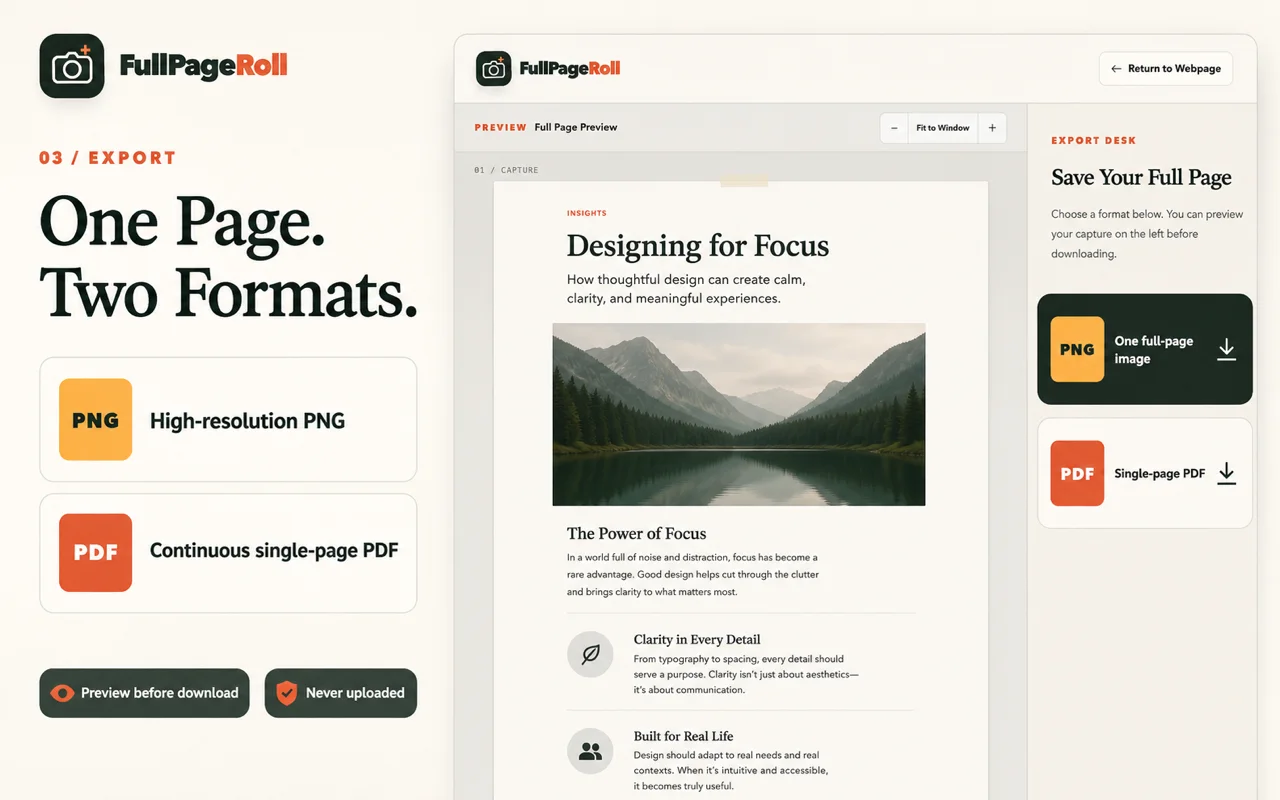
FullPageRoll captures the rendered page first and turns the completed result into one continuous PDF page. The PDF keeps the same top-to-bottom visual layout you reviewed before export.
- 01
Prepare the page
Let the content load, close temporary overlays, pause motion where possible, and return to the top. The PDF will preserve the captured state, including mistakes that are already visible.
- 02
Start FullPageRoll
Click the toolbar icon or use the keyboard shortcut. Keep the tab active while FullPageRoll scrolls through and assembles the webpage.
- 03
Review the completed capture
Check fixed elements, lazy sections, several middle sections, and the footer. This is the moment to recapture; changing the file type will not restore content that is already missing from the preview.
- 04
Choose Continuous Single-page PDF
Select the PDF option in Capture Studio. FullPageRoll creates one long page rather than inserting paper-size page breaks through the webpage.
- 05
Open the downloaded file
Chrome follows your download settings and may ask for a location. Open the saved PDF, zoom into the middle, and confirm that the bottom matches the capture preview.
Create a paginated PDF with Chrome Print
Google's current Chrome Help instructions use the File menu or the operating-system print shortcut. The available destinations and labels can vary by platform, but the workflow is the same.
- 01
Open Chrome Print
Press Ctrl + P on Windows or Linux, or Command + P on macOS. You can also choose File, then Print.
- 02
Choose Save as PDF
Select Save as PDF as the destination. If it is not immediately visible, open the destination list or “See more” options supplied by your operating system.
- 03
Inspect the preview
Check page count, orientation, margins, scale, headers and footers, and background graphics. Print styles may hide elements that remain visible in the browser.
- 04
Save and reopen
Choose Save, name the file, and open it. Confirm that headings are not isolated, wide tables are readable, and the final section is present.
Menu names and shortcuts were checked against Google Chrome Help's current printing instructions (opens in a new tab).
Choose by what must survive
- Need the webpage exactly as rendered? Use a continuous screenshot PDF.
- Need selectable text and paper pages? Try Chrome Print and inspect its preview carefully.
- Need an image for annotation or a bug report? Export PNG instead of wrapping the capture in PDF.
- Need formal evidence? Preserve the URL, access date, and context separately; a screenshot alone may not meet your process requirements.
Do not assume a PDF is automatically more complete than a PNG. Completeness comes from the capture, while PDF determines how that result is packaged.
Avoid blank areas, cutoffs, and tiny output
- Wait for the full page to load before either capture or print. Late layout changes can alter height and pagination.
- If Chrome Print cuts a wide layout, try landscape orientation or a smaller scale; if that changes the design too much, use a screenshot PDF.
- If the capture preview is complete but the PDF is not, export PNG from the same result to isolate whether the defect is in capture or PDF generation.
- Open the final file rather than trusting the download notification. Check both the first and last content blocks at readable zoom.
For problems that begin during scrolling rather than export, use the full-page screenshot troubleshooting guide.
Common questions about saving a webpage as PDF
Why does Save as PDF look different from the webpage?
Chrome uses the site's print styles, which may hide navigation, move columns, remove backgrounds, or insert page breaks. Use a continuous screenshot PDF if visual fidelity matters more than selectable text.
Is a continuous PDF still one page?
Yes. It is one tall PDF page that follows the captured webpage from top to bottom. Some PDF viewers initially shrink it to fit, so zoom in before judging text size.
Can I search or select text in a screenshot PDF?
The captured page is represented visually, so text selection is not guaranteed. Use Chrome Print when searchable text is essential, then inspect the preview to confirm that the print layout keeps the content you need.
Which format is better for a receipt or confirmation page?
Use a continuous screenshot PDF when the visual state, totals, and surrounding context must remain together. Also retain the URL, date, and any transaction identifier required by your own record-keeping process.