A full screen is not a full webpage
On Windows, “Full screen” normally means every pixel currently visible across the display. A full page screenshot means the entire scrollable webpage, including content below the fold. The difference matters because Print Screen and Snipping Tool operate on the screen, while browser tools can work with the webpage's scrollable document.
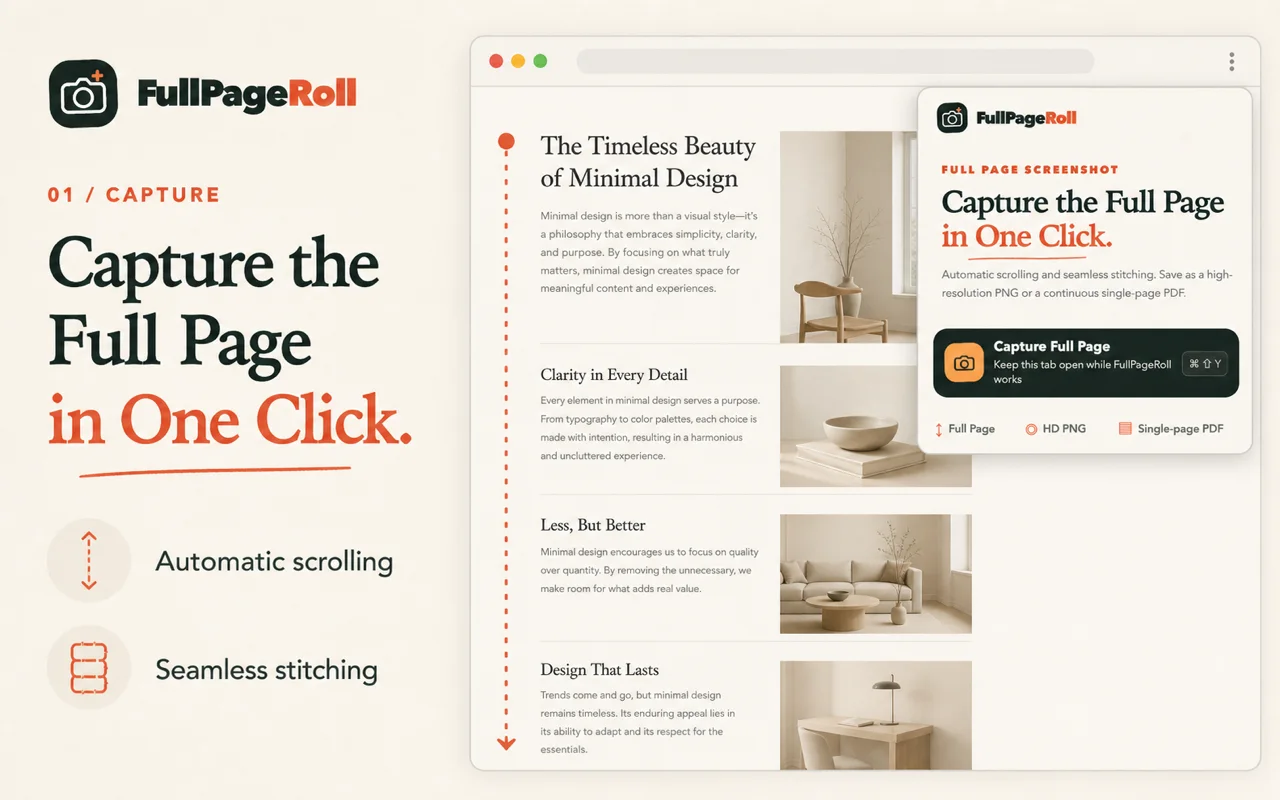
Method 1: FullPageRoll in Chrome or Edge
Use FullPageRoll when you want a repeatable browser workflow and a choice between PNG and continuous PDF. The steps below work the same way in supported browsers on Windows.
- 01
Open the webpage
Use a regular http:// or https:// address, allow the page to finish loading, close overlays, and return to the top.
- 02
Start from the toolbar or keyboard
Click FullPageRoll or press Ctrl + Shift + Y. On first use, read and accept the local-data disclosure before capture begins.
- 03
Keep the browser tab active
Leave the source tab in the foreground while FullPageRoll scrolls. Avoid resizing the window or interacting with the page during the sequence.
- 04
Inspect the assembled page
Review the first screen, middle joins, lazy-loaded content, fixed elements, and footer. A visible preview makes an early cutoff easier to catch before download.
- 05
Save PNG or continuous PDF
Choose PNG for a visual image or continuous single-page PDF for one long document. Chrome or Edge follows your browser download settings.
Method 2: Microsoft Edge Screenshot
Microsoft's current Edge feature page documents a built-in full-page capture. This is the simplest no-extension option on Windows when the page is already open in Edge and an image result is sufficient.
- 01
Open Screenshot
Press Ctrl + Shift + S. Microsoft also exposes Screenshot from the browser menu and the right-click menu, though availability can vary by device, market, and version.
- 02
Choose Capture full page
Select the full-page option rather than an area. Edge captures webpage content that extends below the visible window without requiring you to drag through each screen.
- 03
Copy, mark up, or save
Use the preview controls to annotate if needed, then copy the image or save it to your files. Open the saved result and verify the footer.
The shortcut and full-page option were checked against Microsoft Edge's Screenshot feature page (opens in a new tab).
Method 3: Chrome DevTools
Chrome includes a full-size screenshot command, but it is placed inside developer controls. It is useful for occasional PNG capture when you do not want to install an extension.
- 01
Open DevTools
Press F12 or Ctrl + Shift + I, then focus the DevTools panel.
- 02
Open the Command Menu
Press Ctrl + Shift + P and type “screenshot.” This shortcut is different from Ctrl + P, which opens printing.
- 03
Capture full size
Choose “Capture full size screenshot.” Chrome downloads a PNG; inspect it rather than assuming every lazy or animated section was preserved.
Where Windows Snipping Tool fits
Microsoft documents Rectangle, Window, Full screen, Freeform, and video snips. Its Full screen option captures the current screen, not a browser document that continues below the viewport. It remains the right tool for a visible window, menu, dialog, or selected region.
| Tool | What it captures | Use it when |
|---|---|---|
| FullPageRoll | The scrollable webpage, assembled into one result | You need repeatable PNG or continuous PDF export |
| Microsoft Edge Screenshot | The full webpage inside Edge | You want a built-in Edge image capture |
| Chrome DevTools | The full document through a DevTools command | You need an occasional PNG without an extension |
| Windows Snipping Tool | Visible display, window, region, or video region | The subject already fits on screen |
For exact Chrome shortcuts and limitations, see the Chrome full-page screenshot guide.
Common questions about scrolling screenshots on Windows
Does Windows 11 have a built-in scrolling screenshot?
Windows Snipping Tool captures the visible display, window, or selected region. For an entire webpage, use a browser feature such as Edge Screenshot, Chrome DevTools, or a full-page extension.
What is the fastest keyboard route in Chrome?
With FullPageRoll, use Ctrl + Shift + Y after opening the page. Without an extension, open DevTools with Ctrl + Shift + I, open its Command Menu with Ctrl + Shift + P, and choose Capture full size screenshot.
Can I capture a full webpage in Edge without an extension?
Yes. Press Ctrl + Shift + S and choose Capture full page when that option is available. Use a dedicated extension when you also want a consistent cross-browser workflow or continuous-PDF export.
What should I use for a menu or error dialog?
Use Windows Snipping Tool because the subject is already on screen. Microsoft documents its current modes in the official Snipping Tool guide (opens in a new tab).