Choose the result you need first
A full page screenshot is an image of the complete webpage, not merely the pixels visible on your monitor. Chrome can create one through DevTools, while a purpose-built extension can turn the same task into a repeatable capture-and-export workflow. Chrome's print dialog is a third option when you want a printable document rather than a visual copy of the rendered page.
| Method | Best for | Output | Tradeoff |
|---|---|---|---|
| Full-page extension | Frequent captures and a guided workflow | PNG or continuous single-page PDF | Requires installing an extension |
| Chrome DevTools | Occasional capture with no extension | PNG | Hidden behind developer controls |
| Chrome Print | Printable, paginated documents | Print CSS may change the page layout |
Method 1: capture with a browser extension
Use this route when full-page capture is part of your regular work. FullPageRoll starts from the toolbar, moves through the selected page automatically, and opens one complete result for review before downloading.
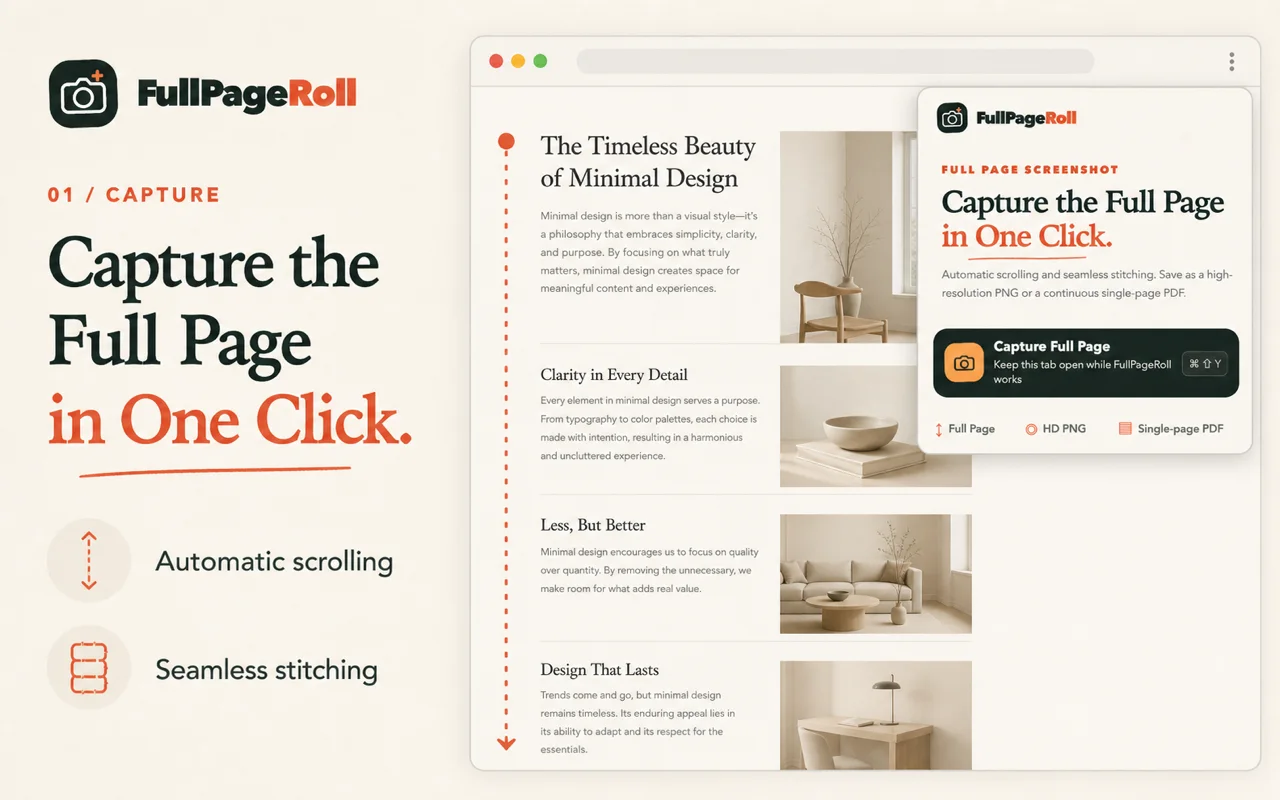
- 01
Open a regular webpage
Use an http:// or https:// page. Let images and fonts finish loading, dismiss cookie banners or modal dialogs, and move the page to the state you want to preserve.
- 02
Start the capture
Click the FullPageRoll camera icon in the toolbar. The keyboard shortcut is Ctrl + Shift + Y on Windows and Linux, or Command + Shift + Y on macOS.
- 03
Confirm local handling on first use
Read the one-time disclosure and start only when you are comfortable. FullPageRoll processes the screenshot inside the browser and does not upload it to a FullPageRoll server.
- 04
Keep the source tab active
Do not switch tabs while the page scrolls. Avoid clicking the page or moving a floating control, because changing page state mid-capture can alter the assembled result.
- 05
Review and export
Inspect the top, middle, bottom, fixed headers, and lazy-loaded sections. Export a high-resolution PNG for a visual artifact or a continuous single-page PDF when one long document is more convenient.
Method 2: use Chrome DevTools
Chrome's built-in route is useful for a one-off PNG. The current official shortcut opens the Command Menu inside DevTools; the capture command then renders the full document into a downloaded image.
- 01
Open DevTools
Press F12 or Ctrl + Shift + I on Windows and Linux. On macOS, press Command + Option + I. Keep DevTools docked if you also plan to use an area-capture command.
- 02
Open the Command Menu
With DevTools focused, press Ctrl + Shift + P on Windows or Linux, or Command + Shift + P on macOS. This is different from the browser's print shortcut.
- 03
Run the full-size command
Type “screenshot,” then select “Capture full size screenshot.” Do not choose “Capture screenshot,” which records only the current viewport.
- 04
Inspect the PNG
Chrome downloads the image. Open it at full size and check fixed elements, content that appeared late, and the very bottom of the page before treating it as a complete record.
DevTools is built in, but it offers less guidance and no direct continuous-PDF export. It is also easier to choose the wrong screenshot command when several similarly named options appear.
Shortcut and command names were checked against Chrome's official Command Menu guide (opens in a new tab).
Which Chrome method should you use?
Choose by the job after capture, not by the shortest instruction list.
- Use FullPageRoll when you capture long pages repeatedly and want the same review-and-export flow each time.
- Use DevTools when you need an occasional PNG and are comfortable opening developer controls.
- Use Chrome Print when selectable text, paper-size pagination, headers, and print margins matter more than preserving the exact visual page.
- Use a viewport screenshot when the visible screen is the whole subject; it is faster and avoids unnecessary page-length capture.
If the deliverable is a document, read the separate guide to saving a full-page screenshot as PDF in Chrome.
Know what a browser cannot capture cleanly
No capture method turns every live webpage into a perfect static document. Check the result rather than assuming a successful download means every state was preserved.
- Chrome does not allow extensions to run on chrome:// pages, the Chrome Web Store, other extension pages, and some protected surfaces.
- Infinite feeds may keep adding content with no natural endpoint. Load only the range you need and choose a clear stopping point before capture.
- Video, WebGL animation, and other continuously changing content may appear at only one moment in the final image. Protected cross-origin content may be absent.
- Lazy-loaded images and nested scrolling regions need time to settle. Wait for the page, keep the tab active, and inspect the preview before export.
If you see missing blocks, duplicated headers, or an early cutoff, work through the full-page screenshot troubleshooting checklist.
Common questions about full-page screenshots in Chrome
Why does Chrome capture only the visible area?
The regular operating-system screenshot command records the viewport, not the scrollable webpage. Use Chrome's full-size DevTools command or a full-page extension when the content continues below the fold.
Can Chrome save a whole webpage without an extension?
Yes. DevTools can download a full-size PNG, and Chrome Print can save a paginated PDF. DevTools is best for an occasional visual capture; Print is better when selectable text and paper pages matter.
Why are sticky headers sometimes repeated?
A sticky element remains attached to the viewport while the page moves, so a basic scrolling method may record it more than once. Use a tool that handles fixed elements, keep the page still during capture, and inspect several joins before saving.
Can a full-page screenshot include content that loads while scrolling?
Often, but not automatically in every web app. Let the page settle, scroll through it once when practical, return to the top, then capture. Endless feeds and protected embeds still need a different approach.