What we tested—and how
This full page screenshot test focuses on the behaviors a normal article does not exercise. The difficult pages are the ones that keep an element attached to the screen, reveal content late, scroll inside an application panel, or change a visual scene as the reader moves. We isolated each behavior so that a missing card or repeated control could not hide inside a busy demo.
| Test detail | Recorded value |
|---|---|
| Test date | August 22, 2026 |
| Browser | Chrome 151.0.7922.34 |
| Operating system | macOS 26.3 |
| Browser surface | 1,440 px at 100% zoom |
| Repetition | Three consecutive captures per page type |
| Files checked | PNG and continuous single-page PDF |
Each page was opened in a clean browser window and capture was started from the real FullPageRoll toolbar button. We checked the assembled preview, downloaded both formats, reopened the files, and repeated the entire sequence twice more before recording a pass.
Results from 18 full-page captures
All six scenarios passed in three consecutive runs. The dimensions below are the rendered output from the test browser, not a claim about every website or device.
Extra-long article — 1,440 × 5,098 px
The first section, all middle color markers, and the final footer appeared in order with no visible gap, overlap, or early cutoff.
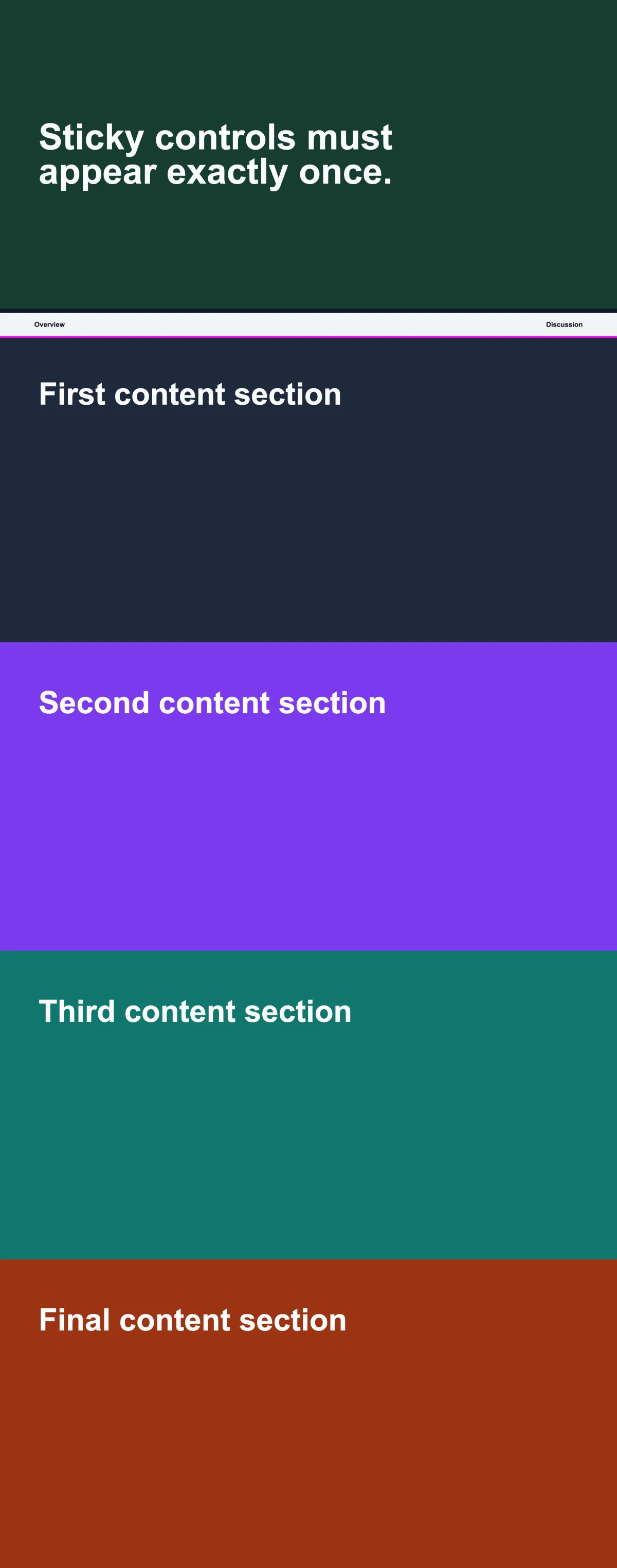
Sticky header and floating control — 1,440 × 3,658 px
The page content remained continuous and each screen-attached control appeared once instead of being repeated down the result.
Nested scroll area — 1,440 × 3,334 px
The application shell appeared once, all four sections inside the scrolling panel reached the result, and the original position was restored afterward.
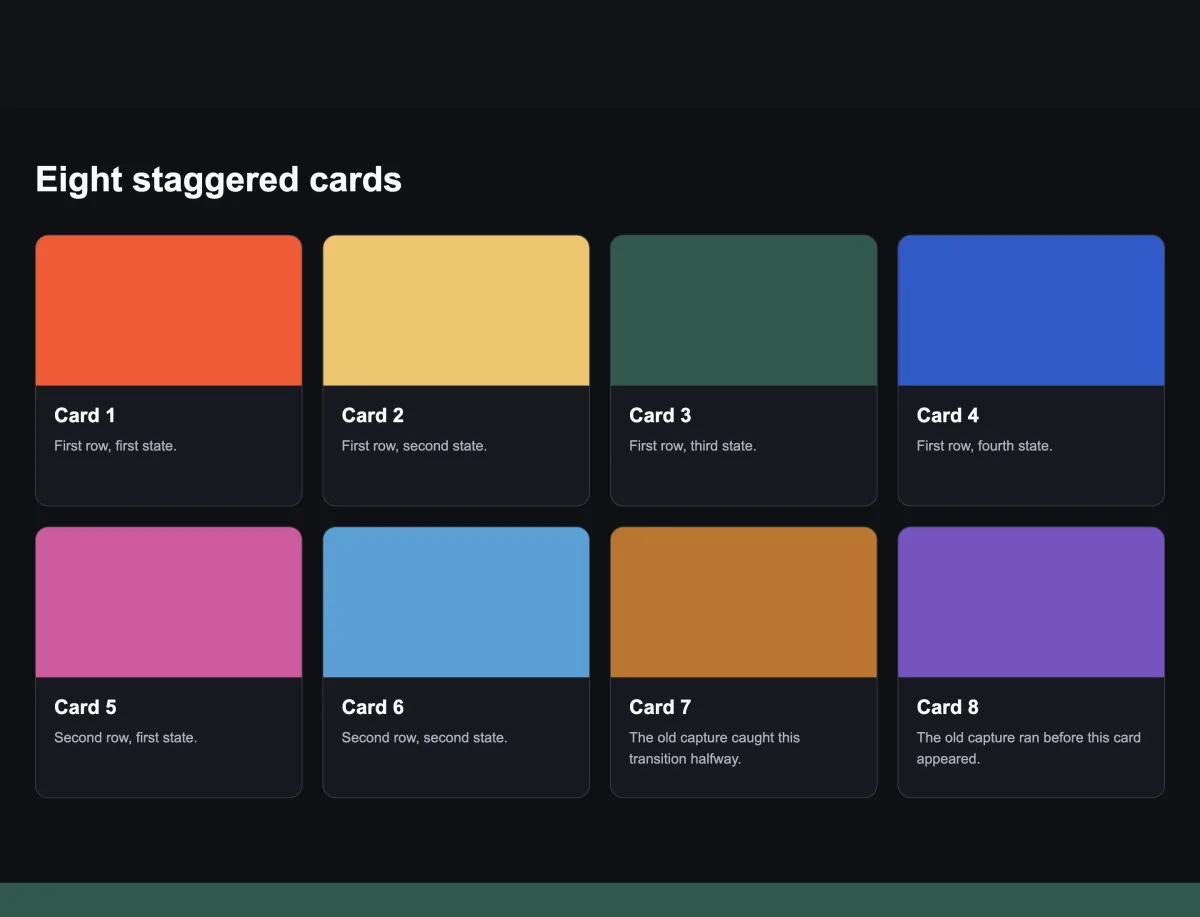
Lazy-loaded card grid — 1,440 × 2,704 px
All eight cards finished appearing before they were recorded; no blank card, half-revealed row, or collapsed gap remained.
Scroll-driven visual section — 1,440 × 3,020 px
Three meaningful visual states appeared once and in order, while the surrounding heading and later page content remained continuous.
Content across a capture join — 1,440 × 2,200 px
A boundary-sensitive module remained intact, and the adjacent sections met without a visible line, repeated strip, or clipped block.
Every successful preview exported as a valid PNG and a one-page continuous PDF. We also reopened each file and confirmed that its ending matched the preview.
What a passing result actually means
A download notification is not proof of a complete screenshot. For these tests, a run passed only when the result met all of the following user-visible checks:
- The expected first and last content appeared exactly once.
- No visible gap, overlap, clipped row, or repeated fixed control appeared between sections.
- Every expected lazy-loaded card was present and fully visible.
- The nested scrolling panel reached its ending without duplicating the surrounding application shell.
- PNG and continuous PDF contained the same logical page from top to bottom.
This evidence supports the six behaviors above in the recorded environment. It does not prove that every dashboard, animation, feed, or protected embed will behave the same way.
Five habits that improve difficult captures
Complex pages are stateful. Preparing the state is often the difference between a clean record and a confusing image, regardless of which capture tool you use.
- 01
Choose the exact page state
Open menus, tabs, filters, or expanded sections that must appear. Close cookie notices, chat panels, and dialogs that are not part of the record.
- 02
Let delayed content finish
Wait for fonts and images. If cards appear only near the viewport, make one careful pass through the finite page, then return to your starting position.
- 03
Identify what actually scrolls
In dashboards and chat-style apps, the page may stay still while a large center panel moves. Note that panel before capture so you can verify its first and last items in the result.
- 04
Do not change the tab mid-capture
Keep the source tab active and avoid resizing, clicking, typing, or starting media while the page moves. Those actions change the evidence being assembled.
- 05
Inspect before you export
Check the top, several middle sections, sticky elements, late-loaded content, and the footer. If any part is wrong, correct the page state and recapture rather than changing file formats.
Where a full-page screenshot still has limits
Some failures describe the browser or the webpage, not a broken export. These cases need a different capture goal or a different medium.
| Page behavior | What to expect | Better approach |
|---|---|---|
| Browser settings, extension stores, and other protected pages | The browser does not allow a normal extension capture on these surfaces. | Use the operating system's visible-area screenshot or the page's own export. |
| Endless social or search feed | There is no objective bottom, so “the full page” is undefined while new items keep arriving. | Load only the range you need and choose a clear last item before capture. |
| Video, canvas, WebGL, or continuous animation | A still image can preserve only selected moments, not the motion itself. | Pause on the important state or use screen recording when motion is the evidence. |
| Protected or cross-site embedded content | An embedded document or player may remain blank or expose only its visible state. | Use the embedded service's download tool or capture that surface separately. |
We also ran a negative check on chrome://settings. FullPageRoll stopped before capture and displayed “This Page Can’t Be Captured,” directing the user to a regular http:// or https:// webpage.
If an ordinary webpage still ends early, repeats a header, or misses loaded content, follow the full-page screenshot troubleshooting guide.
How to repeat this test on your own pages
You do not need laboratory pages to make a useful decision. A small, consistent comparison on the pages you actually save will reveal more than a long feature list.
- 01
Pick four representative pages
Use an ordinary article, your longest finite page, one page with a sticky element, and one page with delayed or nested content. Avoid confidential material for a first trial.
- 02
Keep the conditions the same
Use the same browser, window width, zoom, loaded content, and page state for every attempt. Reset the page before each tool or repeat.
- 03
Check named landmarks
Choose a heading near the top, two middle elements, any sticky control, the last lazy item, and the footer. Confirm each one is present once and in order.
- 04
Open the downloaded files
Do not stop at the preview. Open PNG and PDF at readable zoom, compare their final section, and repeat a difficult case before calling it reliable.
Does this mean FullPageRoll works on every complex site?
No. It means the six named behaviors passed repeatedly in the recorded environment. Real sites can combine unusual scrolling, embeds, authentication, animation, and network timing in ways a controlled test does not cover.
Why test three times instead of once?
A single successful run can hide timing-sensitive problems. Three consecutive passes do not prove universal reliability, but they are stronger evidence than one hand-picked screenshot.
What should I send when a complex page fails?
Share the page URL when permitted, browser and operating system, window size and zoom, the page state before capture, the first visible defect, and whether the preview and downloaded file differ. Remove private information before sharing evidence.